1. Accessing the Event Creation Pop-up
Navigate to Projects > Calendar from the left sidebar.
Click the "+ New Event" button in the top right corner.
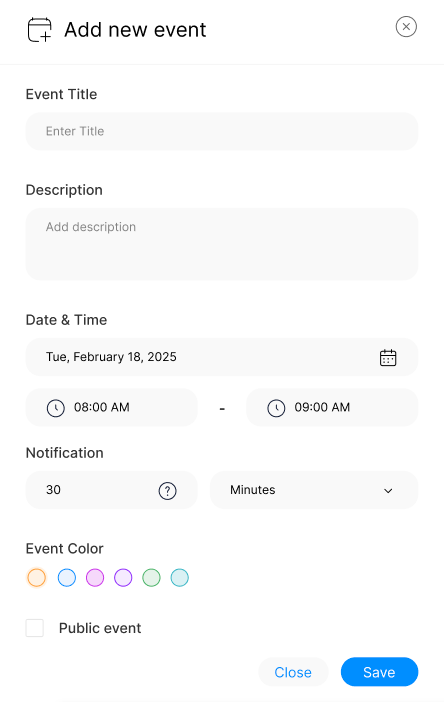
2. Filling in Event Details
Event Title: Enter a descriptive name for the event.
Description: Optionally, add details about the event.
3. Selecting Date & Time
Use the calendar icon to pick a date.
Set the start and end time for the event.
4. Configuring Notifications
Choose when to receive a reminder before the event.
Set a notification time in minutes, hours, or days.
5. Choosing an Event Color
Select a color-coded option to categorize events visually.
6. Setting Public or Private Event
Check the "Public Event" box to make it visible to others.
Leave it unchecked for a private event.
7. Saving the Event
Click "Save" to add the event to the calendar.
Click "Close" to cancel without saving.
By using the Add New Event feature, users can efficiently schedule tasks and keep track of important deadlines within ClearCRM.