Forms in ClearCRM allow businesses to collect customer information, generate leads, and automate marketing efforts. Below is a step-by-step guide to creating a form within the platform.
1. Navigating to the Forms Section
Log in to your ClearCRM account.
From the left-hand navigation menu, go to Marketing.
Click on Assets & Forms.
Ensure that you are on the Forms tab at the top.
2. Creating a New Form
Click the "Create Form" button.
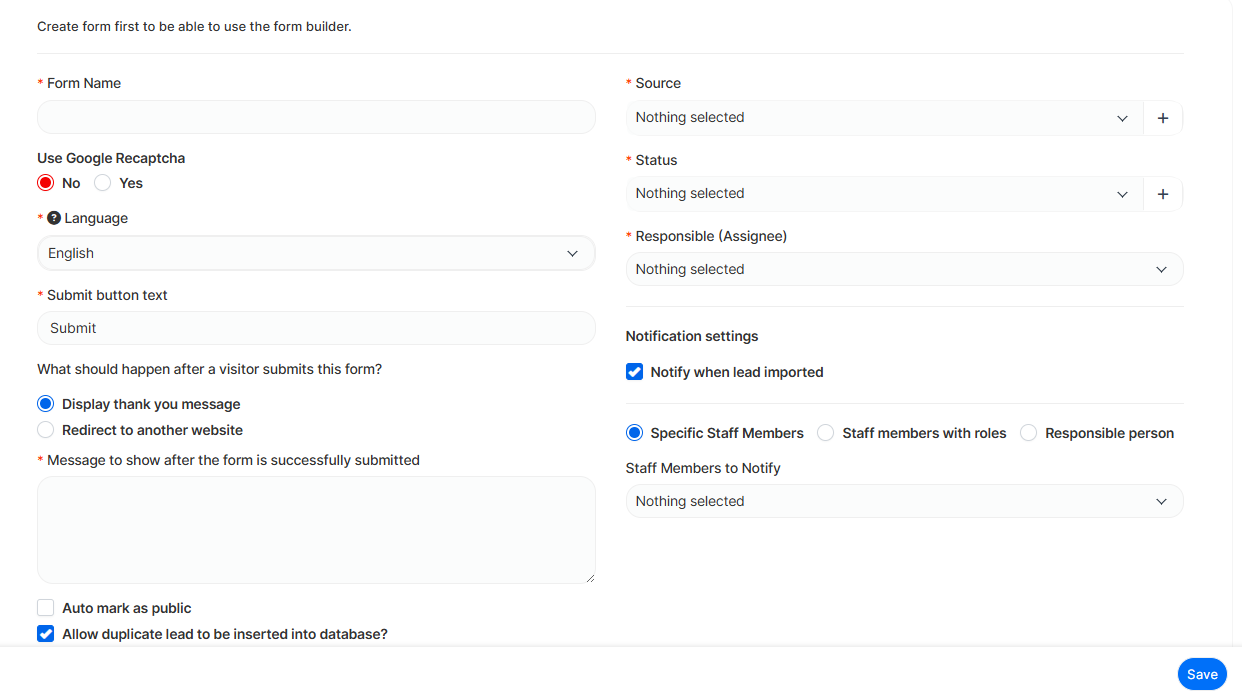
Fill in the required fields:
Form Name (Required): Choose a descriptive name for the form.
Use Google Recaptcha: Select "Yes" if you want to enable Captcha verification for spam protection.
Language (Required): Choose the form's primary language.
Submit Button Text (Required): Customize the text on the submit button.
3. Configuring Form Behavior
After Submission Action:
Choose whether to display a thank-you message or redirect visitors to another webpage.
If displaying a thank-you message, enter the message content.
Source & Status:
Select the source (where the lead came from) and status of the form submission.
Assigning Responsibility:
Assign the form responses to a specific staff member or responsible person.
4. Notification & Additional Settings
Notification Preferences:
Check the box to notify when a lead is imported.
Choose to notify specific staff members, roles, or the responsible person.
Other Options:
Enable Auto Mark as Public if you want the form to be accessible publicly.
Allow duplicate leads to be inserted into the database if needed.
5. Saving & Using the Form
Once all fields are configured, click Save.
The form is now ready for use and can be embedded on websites or shared via a direct link.