
Bulk importing leads into ClearCRM using a CSV file allows you to efficiently add multiple contacts at once. Follow these steps to ensure a smooth import process.
1. Access the Leads Page
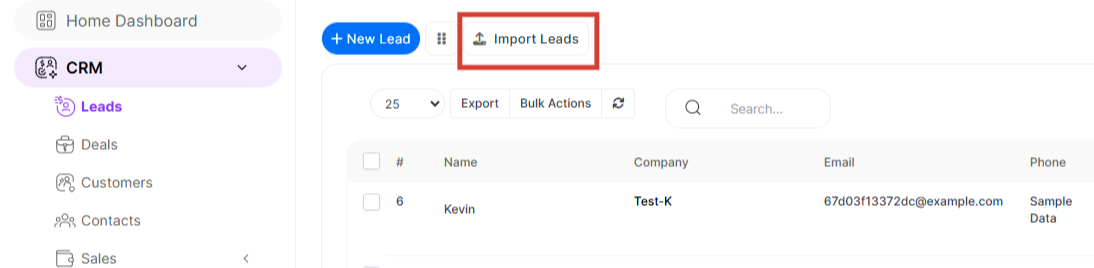
Navigate to the CRM from the left navigation menu.
Select "Leads" from the dropdown list to open the Leads management section.
2. Locate the Import Leads Button
On the Leads page, find the "Import Leads" button.
It is located close to the "New Lead" button.
3. Open the Import Leads Page
Click "Import Leads" to open the import interface.
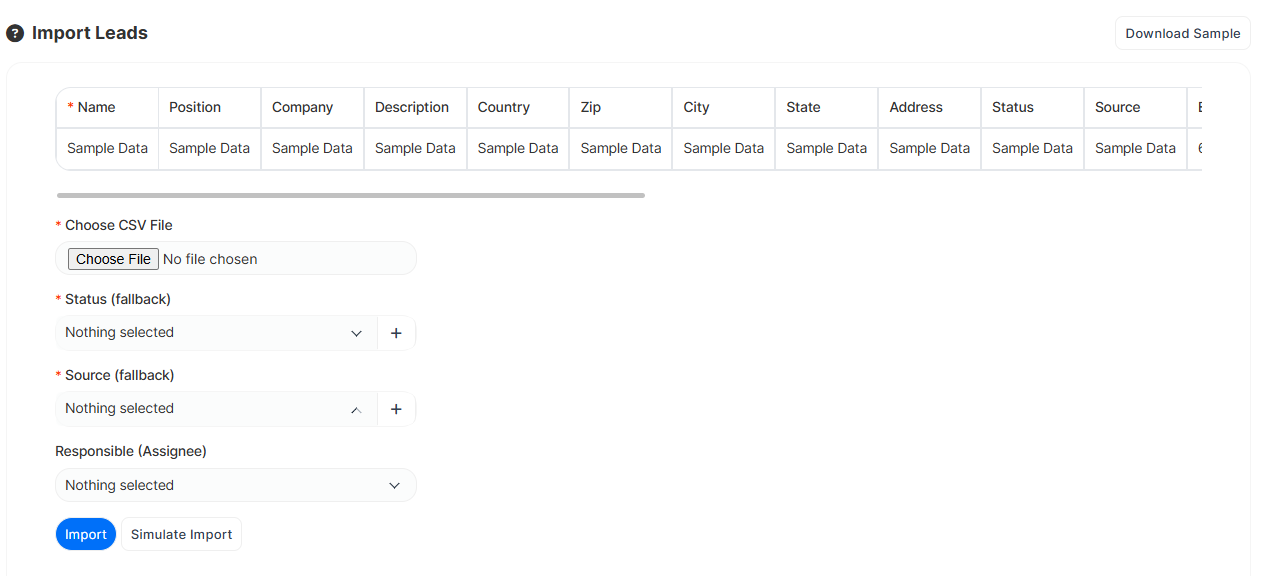
Here, you will find options to upload a CSV file and map fields.
4. Download the Sample CSV File
On the import page, download the provided sample CSV template.
This ensures your data is formatted correctly before uploading.
5. Fill Out the CSV File
Open the sample CSV file and enter the required details, such as:
Name
Position
Company
Description
Country
You can include multiple leads in a single CSV file for batch importing.
6. Upload the CSV File
Save the completed CSV file in .csv format.
Click "Choose File" and select the CSV file from your device.
7. Select Lead Status and Assignee
After uploading, choose a default status for the imported leads (e.g., New, Contacted, Customer).
Optionally, assign the leads to a specific team member for follow-up.
8. Import and Verify Leads
Click "Import" to begin the process.
The system will process the data and display a confirmation message.
Verify that all leads appear correctly in the CRM, with accurate details.
Conclusion
Using the CSV import function in ClearCRM makes it easy to add multiple leads at once. By following these steps, you can ensure a smooth and error-free import process, saving time and improving efficiency.